Effects (SFX)
Waveform and chase effects, frequency masters and tap tempo.
An SFX applies time-based modulation (a waveform or step chase) to fixture attributes - pan, tilt, focus, zoom, iris, intensity, colour (RGB/CMY or colour wheels) and gobo wheels.
SFX use three concepts:
| Concept | What it is |
|---|---|
| Template | A reusable, fixture-agnostic recipe: which parameter, what waveform, size, centre, value mode. It contains no fixtures. Every template has a built-in master speed (Hz). |
| Application | A template aimed at targets (fixtures and/or groups) at an amount (0–100 %). One application holds the list of target fixtures and the amount; it is stored in a cue part, a preset, or on a fader. An application may optionally link to a shared master frequency. |
| Instance | A running copy of an application. When a cue fires or you APPLY SFX in the programmer, the desk creates one instance per context (programmer, cue-layer, fader). An instance holds the live phase clock. SHOW SFX <id> lists how many instances of a template are currently running. |
| Amount | A blend percentage. At 100 % the effect plays at full depth; at 50 % it is blended half-way between the base look and the effect. |
| Master frequency | A shared, named clock (FREQUENCY <id>) stored as a frequency in Hz or a tempo in BPM. Applications linked to it ignore their template’s built-in speed and run at the master frequency instead - and stay locked in sync with every other effect sharing it. |
A template is created once, then applied wherever you need it - in the programmer, recorded into cues and presets, or loaded onto a fader.
Live update propagation
Editing a template with UPDATE SFX propagates immediately to every
running instance - waveform shape, size, centre, speed, spread, and wings all
update live without restarting the effect or breaking phase continuity. The
one exception is RUNONCE: changing that flag affects the next time the
effect is triggered, not the currently-running instance.
The update path is: Template → all Applications that reference it → all
Instances that play those Applications. So a single UPDATE SFX 1 SPEED 2
simultaneously changes the speed of SFX 1 in the programmer, in every active
cue layer, and on every loaded fader.
Updating a master frequency propagates the same way - UPDATE FREQUENCY 1 BPM 140 immediately re-locks every application on that frequency to the new
tempo.
In the GUI
SFX live on the SFX tab. The SFX table lists your templates (type, state, target fixtures, lines); below it are the create/apply controls, and the Frequency Masters table manages shared clocks. The panel on the right inspects and edits the selected SFX.
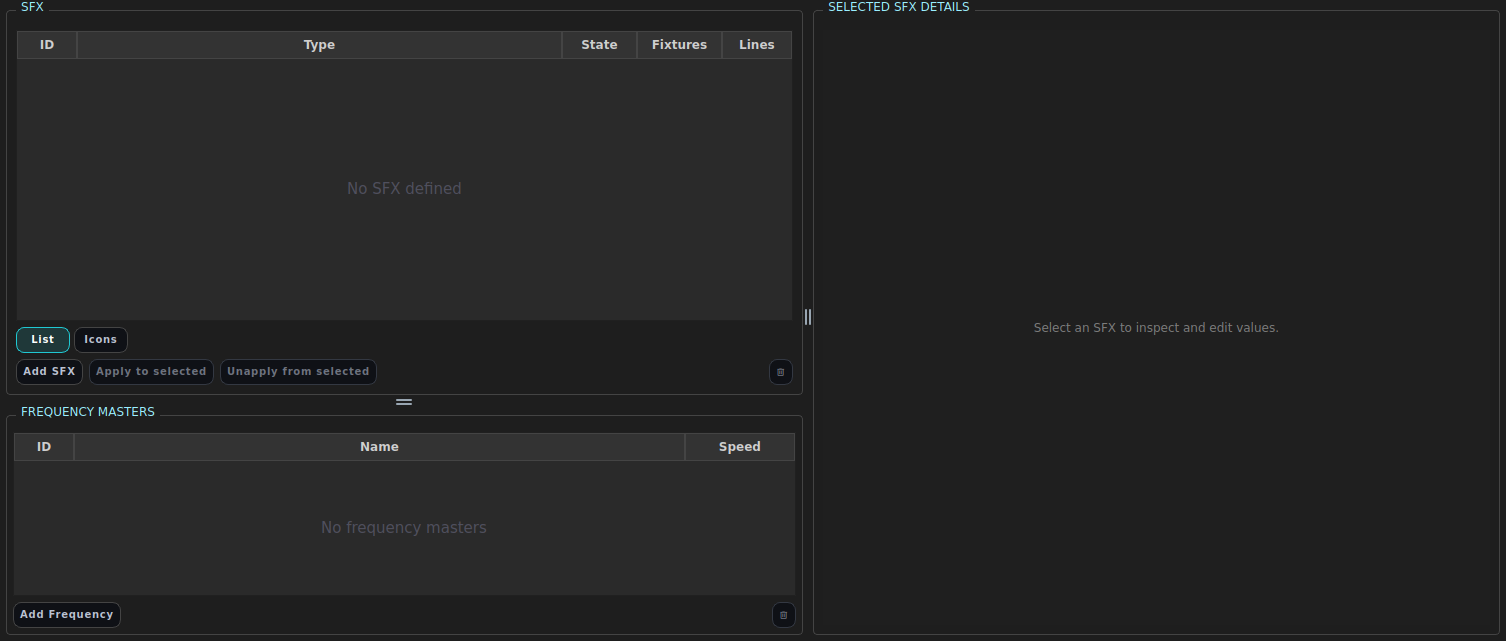
Create and apply an effect
Click Add SFX to create a template, then select fixtures and click Apply to selected to run it on them.
Equivalent commands:
ADD SFX …/STORE SFX …, thenAPPLY SFX <n>.
| In the GUI | What it does | Equivalent command |
|---|---|---|
| Add SFX | Create a new template | ADD SFX <id|NEXT> <param> … |
| Apply to selected | Run the template on the selected fixtures | APPLY SFX <n> |
| Unapply from selected | Stop it on the selected fixtures | UNAPPLY SFX <n> |
| Edit values in the detail panel | Change waveform / size / speed (propagates live) | UPDATE SFX <n> … |
| Add Frequency | Create a shared master clock | CREATE FREQUENCY <n> … |
| Trash button | Delete the selected template | DELETE SFX <n> |
Command reference
Every SFX command and what it does. Square-bracketed [...] parts are
optional and may be given in any order after the required leading tokens
(the CLI hints reflect this - once you type one option, the rest stay on offer).
| Command | What it does |
|---|---|
ADD SFX <id|NEXT> <param> | Create a scalar template that modulates one parameter. <param> is one of the generic names pan, tilt, focus, zoom, iris, intensity, or the name of any capability your fixtures expose (e.g. frost). NEXT auto-allocates the lowest free id. Needs no selection. |
ADD SFX <id|NEXT> CHASE | Create a step-chase template (colours, gobos and/or per-step intensities). |
UPDATE SFX <id> ... | Edit an existing template in place; running instances update live (no restart, so phase stays continuous). |
DELETE SFX <id> [FORCE] | Delete a template. FORCE is required if cues, presets or faders still reference it. |
LIST SFX | List every template (with how many copies are running). |
SHOW SFX <id> | Show one template in full: master speed, each effect, and running applications. |
APPLY SFX <id> [AMOUNT <0-100>] [FADEIN <s>] [FADEOUT <s>] [FREQUENCY <id>] | Aim the template at the current selection and start it live in the programmer. Re-applying to a fixture replaces that fixture’s previous programmer copy of the same template. FREQUENCY <id> links the application to a shared master frequency instead of the template’s own speed. |
UNAPPLY SFX <id> [FADEOUT <s>] | The mirror of APPLY: remove the template from the current selection in the programmer. Selected fixtures stop; any unselected fixtures in the same application keep running. FADEOUT releases them over <s> seconds. |
SFX <id> AMOUNT <0-100> | Live-adjust the blend amount of the running programmer copies of a template. |
SFX <id> ON|START [AMOUNT <n>] | Start the template on the current selection (equivalent to APPLY SFX <id>). |
SFX <id> OFF|STOP [FADEOUT <s>] | Stop all programmer copies of the template (every target, regardless of selection). Use UNAPPLY to stop only the selected fixtures. |
LOAD SFX <id|name> [FIXTURE <fixture_list>] [GROUP <group_list>] [SELECTED|ALL] AT FADER <n> [AMOUNT <0-100>] [FREQUENCY|FREQ <id>] [MODE <blend|htp|intensity>] [OVERRIDE] | Load the template onto a fader, targeting the current selection. The fader level scales the amount. |
CUE <n> [PART <p>] APPLY SFX <id> [TO [FIXTURE] <fixture_list>] [GROUP <group_list>] [AMOUNT <0-100>] [FREQUENCY <id>] | Add the template to a stored cue - no programmer, no re-record. Without TO it aims at the current selection. Re-applying replaces the previous copy on those targets, exactly as APPLY SFX does live. Lands on part 1 unless PART names another. |
CUE <n> [PART <p>] REMOVE|UNAPPLY SFX <id> [FROM [FIXTURE] <fixture_list>] [GROUP <group_list>] | Take the template out of a stored cue - no programmer, no selection. Without FROM the whole application goes; with FROM only those targets do, and the application is dropped once nothing is left. Without PART every part of the cue is covered. |
LOAD FREQUENCY <id> AT FADER <n> MIN <value> [BPM] MAX <value> [BPM] | Load a master frequency onto a fader: level 0 sets MIN, level 100 sets MAX, interpolated in between. See Riding a frequency on a fader. |
Every <id> above is an id list, so a bank of templates can be driven at
once - the whole clause applies to each in turn:
APPLY SFX 1 THRU 3 AMOUNT 50    # start three templates on the selection
SFX 1 THRU 3 OFF                # stop all three
UNAPPLY SFX 1 + 4               # remove two from the selection
UPDATE SFX 1 THRU 4 SPEED 2     # retime four templates in one command
DELETE SFX 1 THRU 4 FORCE
RENUMBER SFX 1 THRU 4 20        # renumber the block, keeping spacing
UPDATE SFX … NAME <text> stays single-id: one name belongs to one template.
STORE CUE / STORE PRESET capture whatever SFX are running in the programmer
(see the sections below). CLEAR PROGRAMMER stops
programmer-owned SFX.
Value modes: relative vs absolute
Each effect chooses how its numbers map onto a fixture:
- Relative (default for pan/tilt/focus/zoom/iris): the effect modulates around the fixture’s current base value and adds its deviation on top of whatever is already on the attribute. A relative pan effect makes the head wobble around wherever it is currently pointing, and layers on top of any other effect already moving it.
- Absolute (default for every other parameter, e.g. intensity and colour): values are a percentage of the fixture’s physical range and overwrite the attribute (latest wins). An absolute intensity effect drives the level directly, regardless of the base look, and takes the attribute over from any lower effect.
SIZE is the depth (peak-to-peak swing) as a percentage of the parameter’s
range. CENTRE shifts the midpoint (offset for relative, level for absolute).
Creating and editing templates
ADD SFX only creates a template - it does not start anything and needs no
selection.
ADD SFX <id|NEXT> <pan|tilt|focus|zoom|iris|intensity|capability-name>
        [SIZE <0-200>] [CENTRE <0-100>] [RELATIVE|ABSOLUTE]
        [WAVEFORM <SINE|COSINE|LINEAR|SAWTOOTH|TRIANGLE|SQUARE|PULSE|RANDOM>]
        [WIDTH <0-1>] [SPEED <hz>] [RATE <x>] [PHASE <0-1>] [SPREAD <0-1>]
        [WINGS <n>] [BLOCKS <n>] [DIRECTION <FORWARD|REVERSE>]
        [MODE <LATEST|ADD|AVERAGE>] [SEED <n>] [RUNONCE [ON|OFF]] [NAME <text>]

ADD SFX <id|NEXT> CHASE [COLOURS <r,g,b> <r,g,b> ...] [GOBOS <slot> ...]
        [INTENSITY <v> ...] [SPEED <hz>] [BLOCKSIZE <0-100>] [SCROLL <0-100>]
        [STEPFADE <0-1>] [DIRECTION FORWARD|REVERSE]
        [TRAVERSAL LOOP|BOUNCE|RANDOM] [RATEMODE STEP|WHOLE]
        [SEED <n>] [VARIANCE <0-1>] [RUNONCE [ON|OFF]] [NAME <text>]

UPDATE SFX <id> ...        # edit the template; running instances update live
DELETE SFX <id> [FORCE]    # FORCE if referenced by cues/presets/faders
LIST SFX                   # list templates and how many copies are running
SHOW SFX <id>              # full detail of one template
Examples:
ADD SFX 1 PAN SIZE 40 WAVEFORM SINE SPEED 0.5 SPREAD 1 NAME "Pan wave"
ADD SFX 2 TILT SIZE 25 WAVEFORM SINE SPEED 0.5 PHASE 0.25 NAME "Circle tilt"
ADD SFX 3 DIMMER ABSOLUTE CENTRE 50 SIZE 100 WAVEFORM PULSE WIDTH 0.2 SPEED 2
ADD SFX 4 ZOOM SIZE 30 WAVEFORM RANDOM SEED 7 SPEED 1 NAME "Zoom jitter"
ADD SFX 5 CHASE COLOURS 100,0,0 0,100,0 0,0,100 STEPFADE 0.5 SPEED 1 NAME "RGB chase"
ADD SFX 6 CHASE GOBOS 1 2 3 SPEED 0.25 TRAVERSAL BOUNCE NAME "Gobo step"
UPDATE SFX 1 SPEED 1.5 SIZE 60
UPDATE SFX 5 RATEMODE WHOLE     # switch a chase's speed to time the whole chase
Chase step weighting and rate mode
Each chase step carries a weight (default 1.0) that sets its relative
dwell time. Weights are continuous, so 1.5 dwells exactly 1.5× as long as a
1.0 step - there is no rounding to whole steps.
RATEMODE chooses what the master speed (Hz) times:
STEP(default for new chases) - the speed times each step: a weight-1.0step lasts1/speedseconds, so a chase of weights1, 1, 1.5, 2at2 Hzdwells0.5s, 0.5s, 0.75s, 1.0s(2.75s total). Adding steps lengthens the chase. Good for beat-locked chases (one step per beat when linked to a BPM master frequency).WHOLE- the speed times the whole chase: one full pass always completes in1/speedseconds and the weights only redistribute that fixed window. Good for a fast sweep (e.g. a pulse across a pixel array) whose total duration must not change as steps are added.
RATEMODE can be changed live without redefining the steps
(UPDATE SFX <id> RATEMODE STEP|WHOLE), and CHASE is accepted as an alias for
WHOLE. Chases saved before this feature load as WHOLE so their timing is
unchanged.
Waveforms
SINE, COSINE, LINEAR/SAWTOOTH, TRIANGLE, SQUARE, PULSE (with
WIDTH duty 0–1) and RANDOM (a seeded sample-and-hold; set SEED).
Spreading an effect across fixtures
SPREAD <0-1>offsets the phase progressively across the target fixtures so the effect ripples along the rig.WINGS <n>mirrors the spread into n symmetric halves (e.g. a fan from the centre out).BLOCKS <n>makes n adjacent fixtures share a phase before stepping.
How effects merge: absolute overwrites, relative adds
The merge behaviour follows directly from the value mode - there is no separate mode to set:
- Absolute effects overwrite (latest wins). A second absolute effect on the same attribute, or an absolute effect over a running cue/fader effect, takes the attribute over. Use absolute when you want the effect to drive the attribute or override whatever else is on it.
- Relative effects add. A relative effect adds its deviation on top of whatever the attribute is currently doing - the base look, a running cue effect, or another relative effect. Use relative when you want to layer.
Layering effects on one attribute. Because relative adds, you can stack a small wobble on top of a slow sweep with no extra setup - just make the sweep absolute and the wobble relative:
ADD SFX 1 PAN ABSOLUTE CENTRE 50 SIZE 60 SPEED 0.3          # the sweep (overwrites)
ADD SFX 2 PAN RELATIVE SIZE 15 SPEED 1.5                    # wobble that rides it (adds)
The relative wobble adds its deviation to whatever the attribute is currently
doing, including the sweep, so you get sweep + wobble. A fader on the wobble is a
live depth control, and the combined look is captured faithfully by
STORE CUE OUTPUT (see Cues).
The legacy
MODE <LATEST|ADD|AVERAGE>token is still accepted onADD SFX/UPDATE SFXfor backwards compatibility but is ignored - the merge is derived fromRELATIVE/ABSOLUTE.
Run once
RUNONCE is a whole-SFX flag (it applies to the entire template, not an
individual capability/effect). It is set with ADD SFX or UPDATE SFX;
RUNONCE or RUNONCE ON enables it and RUNONCE OFF disables it again.
A run-once SFX behaves like a one-shot rather than a continuous effect:
- it does not fade in - it instantly runs its effect at full level;
- it runs for one complete phase (one cycle of the template’s master speed) and then stops instantly (no fade out);
- it is independent of the shared SFX phase clock - it does not phase-lock to other running SFX, and it is not used as a phase source when other SFX are started later (they ignore it and sync to each other as usual);
- in a cue with premove it is not pre-started during the premove window; instead premove pre-positions the fixtures to the SFX’s starting position for position attributes (pan/tilt), so there is no visible snap when the SFX fires.
ADD SFX 7 PAN SIZE 30 WAVEFORM SINE SPEED 0.5 RUNONCE NAME "One-shot swish"
UPDATE SFX 1 RUNONCE ON      # turn an existing template into a one-shot
UPDATE SFX 1 RUNONCE OFF     # back to a continuous effect
Applying to fixtures (programmer)
APPLY SFX aims a template at the current selection and starts it live in the
programmer.
APPLY SFX <id> [AMOUNT <0-100>] [FADEIN <s>] [FADEOUT <s>]
UNAPPLY SFX <id> [FADEOUT <s>]  # remove the effect from the current selection
SFX <id> AMOUNT <0-100>         # live-adjust the running programmer copies
SFX <id> OFF [FADEOUT <s>]      # stop ALL programmer copies of this template
UNAPPLY is the mirror of APPLY: it works from the current selection.
Only the selected fixtures stop - if an effect is running on a wider set of
fixtures, the unselected ones keep going. To stop a template everywhere at once,
regardless of selection, use SFX <id> OFF.
Examples:
FIXTURE 1 THRU 8 ; APPLY SFX 1 AMOUNT 50
FIXTURE 1 THRU 4 ; UNAPPLY SFX 1          # 5-8 keep running
GROUP 3 ; APPLY SFX 5 AMOUNT 100 FADEIN 2
SFX 1 AMOUNT 75
GROUP 3 ; UNAPPLY SFX 5 FADEOUT 3         # fade the group's copy out
SFX 1 OFF FADEOUT 3                        # stop everywhere
CLEAR PROGRAMMER stops programmer-owned SFX.
Master frequencies
A master frequency is a shared clock that several SFX can ride at once. Link
an application to one with FREQUENCY <id> (on APPLY SFX or LOAD SFX) and the
effect ignores its template’s built-in speed, running at the master frequency
instead. Because all SFX share a single master clock (a new effect always
phase-syncs to any already-running effect), every application on the same master
frequency stays locked in sync.
A frequency is stored either as a raw frequency in Hz (SPEED) or as a
musical tempo in BPM. A BPM value is stored verbatim but evaluated as
bpm ÷ 60 Hz, so BPM 120 runs at 2 Hz.
CREATE FREQUENCY <id> <SPEED|BPM> <value> [NAME <text>]
UPDATE FREQUENCY <id> [SPEED|BPM <value>] [NAME <text>]   # updates live
SHOW FREQUENCY <id>                                        # mode, value, evaluated Hz, usage
LIST FREQUENCIES                                           # all frequencies and link counts
DELETE FREQUENCY <id> [FORCE]                              # FORCE if used by cues/presets/faders
Updating a frequency takes effect immediately on every running SFX linked to it
- no re-apply needed.
DELETE FREQUENCY refuses to delete a frequency that is still referenced by a
cue, preset or fader. With FORCE, those applications drop the frequency mapping
and revert to the SFX template’s built-in master speed, and a warning is
shown.
Examples:
CREATE FREQUENCY 1 BPM 128 NAME "Main tempo"
FIXTURE 1 THRU 8 ; APPLY SFX 1 FREQUENCY 1
GROUP 3 ; APPLY SFX 2 FREQUENCY 1          # locked in sync with SFX 1
UPDATE FREQUENCY 1 BPM 140                  # both effects speed up together, live
DELETE FREQUENCY 1 FORCE                    # effects revert to their template speeds
Riding a frequency on a fader
A fader can also drive a master frequency directly, with no SFX involved:
LOAD FREQUENCY <id> AT FADER <n> MIN <value> [BPM] MAX <value> [BPM]
A bare number is stored as Hz; append BPM (fused, e.g. 120BPM, or as its own
word, 120 BPM) to store it as a tempo instead. Fader level 0 applies MIN,
level 100 applies MAX, and everything in between is a linear interpolation
(in Hz, so a Hz bound and a BPM bound can be mixed). Moving the fader writes
straight onto the frequency’s live value - every SFX linked to it updates
immediately, same as UPDATE FREQUENCY.
CREATE FREQUENCY 1 SPEED 1
LOAD FREQUENCY 1 AT FADER 12 MIN 60BPM MAX 180BPM
FADER 12 50                    # frequency 1 is now 120 BPM
Unlike UPDATE FREQUENCY, riding this fader never creates a CLI history entry
or an undo step - moving it is a runtime action, not a scripted edit, exactly
like moving any other fader. The current interpolated value is saved with
the show, though, since it lives on the master frequency itself.
DELETE FREQUENCY on a frequency loaded this way has no template speed to
fall back to, so FORCE removes the fader outright instead of just clearing
a link.
Recording into cues
Whatever SFX you have running in the programmer is recorded into the cue, with its targets and amount:
STORE CUE <n>
When you GO between cues the desk diffs the SFX applications:
- effects present in both cues keep running (no restart, so phase is continuous);
- an amount change morphs in place over the cue fade;
- effects that disappear fade out; new ones fade in.
Group targets stay references
Applying to a group selection (GROUP 3 ; APPLY SFX 1) targets the group,
not today’s members, and STORE CUE keeps it that way. Change the group later
and every cue that carries the effect follows - members added pick it up,
members removed stop getting it. Fixtures selected individually alongside the group
are stored as explicit targets in their own right, so
GROUP 3 + FIXTURE 9 ; APPLY SFX 1 gives fixture 9 the effect too and keeps it
when group 3 changes.
Set CONFIG GROUP ABSOLUTE to record the other way: groups are expanded to
fixtures at APPLY time and the stored effect no longer tracks the group.
SHOW CUE <n> FULL prints each application’s fixtures and groups, so you can
see which you have.
Taking something out of a cue takes it out of that cue’s effects too:
UPDATE CUE <n> REMOVE FIXTURE <ids> and CUE <n> FIXTURE <ids> REMOVE drop
those fixtures from the cue’s applications, CUE <n> GROUP <ids> REMOVE drops
the group reference, and an application left with no targets is removed from
the cue. A fixture that is still a member of a referenced group keeps the
effect through that reference - remove it from the group, or record the cue in
absolute mode, to stop it.
Editing a stored cue’s effects directly
CUE <n> [PART <p>] APPLY  SFX <ids...> [TO   [[FIXTURE] <ids...>] [GROUP <ids...>]] [AMOUNT <0-100>] [FREQUENCY <id>]
CUE <n> [PART <p>] REMOVE SFX <ids...> [FROM [[FIXTURE] <ids...>] [GROUP <ids...>]]
CUE <n> [PART <p>] UNAPPLY SFX <ids...> [FROM ...]      # the same as REMOVE
These edit the cue in place - no programmer, no re-record:
CUE 12 APPLY SFX 2 TO GROUP 3 AMOUNT 60      # add it, at 60%
CUE 12 APPLY SFX 2                           # ... or aim at the current selection
CUE 12 REMOVE SFX 2                          # out of cue 12 entirely
CUE 12 REMOVE SFX 2 FROM FIXTURE 1 THRU 4    # just those four
CUE 12 REMOVE SFX 2 FROM GROUP 3             # drops the group reference
CUE 12 PART 2 UNAPPLY SFX 1 THRU 3           # a range, one part
APPLY writes to part 1 unless PART names another - the same routing
STORE/UPDATE CUE use - while REMOVE covers every part of the cue unless
PART narrows it: one has to choose a home for the effect, the other has to
find it wherever it lives. Re-applying a template replaces its previous copy on
the targets you name, so CUE 12 APPLY SFX 2 TO FIXTURE 5 AMOUNT 30 moves just
fixture 5 onto a 30% copy and leaves the rest of the old application alone -
exactly what APPLY SFX does in the programmer. TO GROUP <n> stores a group
reference, unless the show is in CONFIG GROUP ABSOLUTE, in which case it
resolves to members like everything else.
There are no FADEIN/FADEOUT options on the cue form: a cue’s effects fade
with the part’s own fade times.
Naming a group removes its members however the cue stored them, so
FROM GROUP 3 works on an absolute fixture list as well as on a reference.
Naming a member of a group the application references (FROM FIXTURE 5) has
to resolve that one reference to the members that survive - a reference cannot
say “everyone but fixture 5” - exactly as UNAPPLY SFX does in the programmer.
Any other group references in the same application are left as references.
A cue that is already running keeps its effects until the next GO, like every other direct cue edit.
Recording into presets
Presets can carry SFX too, so recalling the preset brings the effect with it:
STORE PRESET <n>     # captures running programmer SFX (targets + amount)
PRESET <n>           # recall - recreates the effect in the programmer
When recalled onto a selection, the stored effect is retargeted to the fixtures you recall it onto. Group targets are stored as references here too, exactly as they are in a cue.
Faders
LOAD SFX <id|name> [FIXTURE <fixture_list>] [GROUP <group_list>] [SELECTED|ALL] AT FADER <n> [AMOUNT <0-100>] [FREQUENCY|FREQ <id>] [MODE <blend|htp|intensity>] [OVERRIDE]
LOAD PRESET <p> AT FADER <n>                  # the preset's SFX start with it
The fader level scales the amount: a fader at 50 % with AMOUNT 80 runs the
effect at 40 % depth. Lowering the fader to 0 stops the effect; raising it starts
it again.
FIXTURE 1 THRU 8 ; LOAD SFX 1 AT FADER 12 AMOUNT 100
LOAD PRESET 4 AT FADER 3
Worked examples
Pan/tilt circle on a group
ADD SFX 1 PAN  SIZE 30 WAVEFORM SINE SPEED 0.5
ADD SFX 2 TILT SIZE 30 WAVEFORM SINE SPEED 0.5 PHASE 0.25
GROUP 4 ; APPLY SFX 1 ; APPLY SFX 2
RGB chase folded into a cue
ADD SFX 5 CHASE COLOURS 100,0,0 0,100,0 0,0,100 STEPFADE 0.4 SPEED 1
GROUP 2 ; APPLY SFX 5 AMOUNT 100
STORE CUE 30 "Chase in chorus"
Effect depth on a fader
ADD SFX 3 DIMMER ABSOLUTE CENTRE 50 SIZE 100 WAVEFORM SINE SPEED 3
GROUP 1 ; LOAD SFX 3 AT FADER 10 AMOUNT 100
Push the fader to dial in the strobe/pulse depth live.
Troubleshooting
- No movement: confirm the selected fixtures support the target parameter (e.g. only moving heads have pan/tilt; only wheel fixtures have gobo).
- Effect too strong/weak: change
AMOUNT, orSIZEon the template. - Wheel/gobo not changing on a fader: the amount (fader level × loaded amount) must reach 50 % before a non-fadeable wheel slot engages.
- Relative effect sitting at an odd value: with no base look it rides on the
fixture’s home value - set a base level/position first, or use
ABSOLUTE.