Palettes
Reusable attribute values - a colour, a gobo, a beam shape - applied by name.
Palettes store type-scoped looks that can be applied to any selection and shared across cues. Because a palette is a live reference, editing one palette updates every cue or preset that points to it.
Palette types
| Type | Capabilities stored |
|---|---|
intensity | dimmer / intensity |
colour | red/green/blue, cyan/magenta/yellow, named colours, colour-wheel slots |
gobo | gobo, gobo index, gobo rotation |
beam | zoom, iris, frost, focus, prism, shutter/strobe |
A palette only stores capabilities that match its type. Colour palettes handle
RGB↔CMY conversion automatically when applied to fixtures that use the other
model. Gobo and beam palettes can be scoped to a single fixture type with the
optional FIXTURETYPE <type> token (wheel slots rarely transfer between
models).
In the GUI
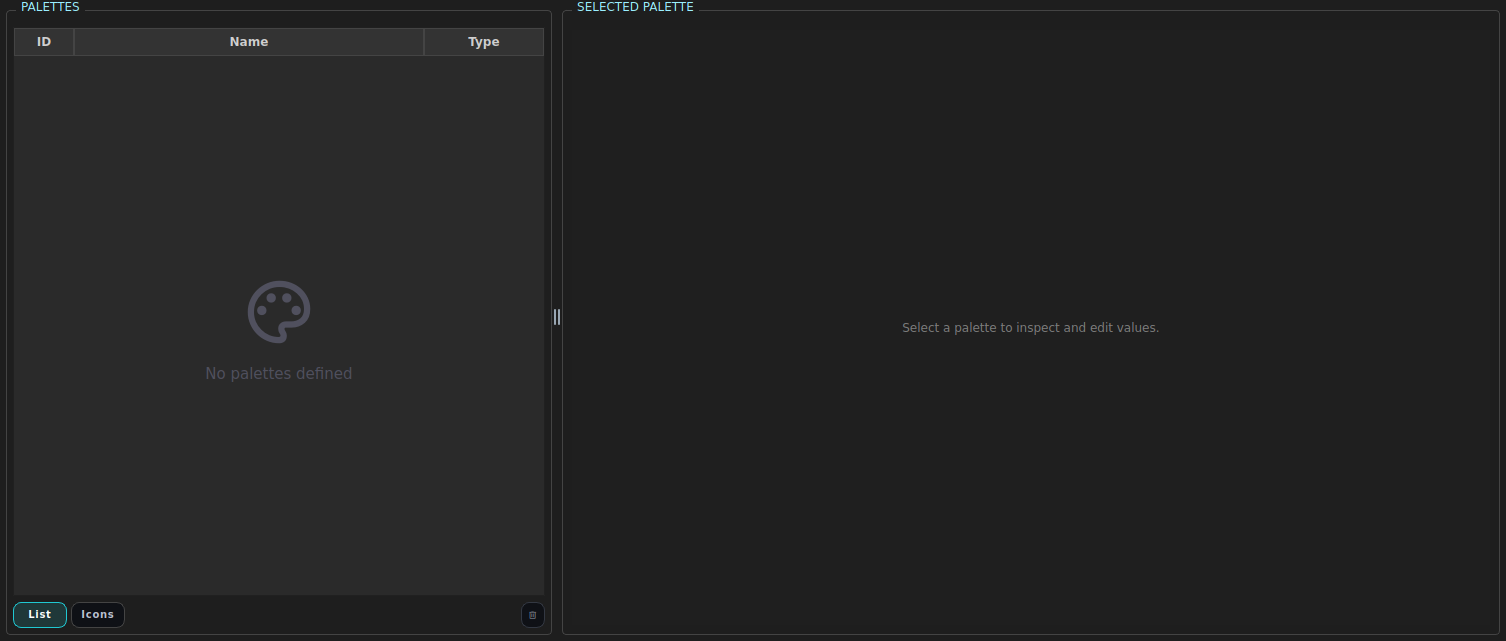
Palettes live on the Palettes tab. The table on the left lists your palettes and their type; the panel on the right edits the selected palette.
Store a palette
Select the fixtures whose look you want to capture, build the values in the programmer, then click Palettes… and pick Save Intensity as New… or Save Colour as New…. The palette is stored from the current programmer contents.

Equivalent command:
STORE PALETTE <n> TYPE <type> NAME "…".
| In the GUI | What it does | Equivalent command |
|---|---|---|
| Palettes… → Replace … | Overwrite an existing palette from the programmer | UPDATE PALETTE <n> … |
| Trash button | Delete the selected palette | DELETE PALETTE <n> |
| Click a palette row | Apply it to the current selection | PALETTE <n> |
CLI commands
STORE PALETTE 1 TYPE colour RED 100 GREEN 0 BLUE 0   # inline store
STORE PALETTE 1 TYPE colour NAME "Red"               # store from programmer
UPDATE PALETTE 1 NAME "Deep red" RED 90              # TYPE is optional; the existing type is kept
DELETE PALETTE 1 [FORCE]
LIST PALETTES
SHOW PALETTE 1

PALETTE 1                          # apply to current selection, 100%
PALETTE 1 AMOUNT 50                # apply at 50%
APPLY PALETTE 1 [AMOUNT <0-100>]   # explicit alias
UNAPPLY PALETTE 1                  # remove from current selection
UNAPPLY PALETTE 1 ALL              # remove from every fixture/group in programmer
PALETTE 1 AMOUNT 0 is equivalent to UNAPPLY PALETTE 1.
Single apply
Applying one palette at full amount writes its values into the programmer for the current selection. The programmer records not just the resolved value but also the palette id as the source, so cues and presets that are stored afterwards carry a live reference.
SELECT FIXTURE 1 THRU 4
PALETTE 3             # apply Palette 3 "Stage Red" at 100%
Stacking multiple palettes
Applying a different palette to an attribute that already has a palette contribution adds a second entry to the stack for that attribute - the two palettes co-exist rather than the second one silently replacing the first.
PALETTE 1             # P1 "Red"  red=100 on fixture 1
PALETTE 2 AMOUNT 50   # P2 "Warm" red=60  added alongside P1 on fixture 1
Each entry on the stack carries its own amount (0–100 %) and the order in
which it was applied.
Re-applying the same palette id to an attribute it already contributes to replaces that contribution in place (preserving its position in the stack):
PALETTE 1             # P1 at 100%
PALETTE 2 AMOUNT 50   # P2 added
PALETTE 1 AMOUNT 75   # P1 updated to 75%, not appended again
A raw manual edit (RED 50) clears the entire stack for that capability
and replaces it with a plain value that has no palette source. Subsequent
palette applies restart the stack from that point.
Blending rule - fadeable capabilities
For continuously fadeable capabilities (intensity, colour channels, pan, tilt, focus, zoom, …) stacked contributions are aggregated by a weighted average:
weighted_target = Σ(valueᵢ × amountᵢ) / Σ(amountᵢ)
blend_alpha     = min(1.0, Σ(amountᵢ))
result          = base + (weighted_target − base) × blend_alpha
base is what was on the attribute before any palette was applied: the level
you typed yourself if you typed one, and otherwise whatever the programmer
inherited from playback or faders (typically 0 when the programmer starts
clean). A manual value carries no weight of its own - a palette takes the
attribute over rather than being averaged with it - it is only what the blend
starts from, which is why RED 70 then PALETTE 1 AMOUNT 50 against a palette
holding 40 gives 55, and why AMOUNT 0 puts the 70 back.
Worked examples
Two palettes at full amount (100% + 100%)
| Contribution | Value | Amount |
|---|---|---|
| Palette 1 “Red” | red = 100 | 100% |
| Palette 2 “Dark red” | red = 60 | 100% |
weighted_target = (100×1.0 + 60×1.0) / (1.0 + 1.0) = 80
blend_alpha     = min(1.0, 2.0) = 1.0
result          = 0 + (80 − 0) × 1.0 = 80
Both palettes at full amount: result is their simple average.
Two palettes at mixed amounts (100% + 50%)
| Contribution | Value | Amount |
|---|---|---|
| Palette 1 “Red” | red = 20 | 100% |
| Palette 2 “Amber” | red = 80 | 50% |
weighted_target = (20×1.0 + 80×0.5) / (1.0 + 0.5) = 60 / 1.5 = 40
blend_alpha     = min(1.0, 1.5) = 1.0
result          = 0 + (40 − 0) × 1.0 = 40
The higher amount biases the weighted average toward Palette 1.
Single palette at partial amount (50%)
| Contribution | Value | Amount |
|---|---|---|
| Palette 2 “Amber” | red = 80 | 50% |
weighted_target = 80
blend_alpha     = min(1.0, 0.5) = 0.5
result          = 0 + (80 − 0) × 0.5 = 40
A lone palette at 50% delivers half its value from the inherited base.
Key properties
- The blending is order-independent: applying P1 then P2 gives the same result as P2 then P1, because the formula only uses values and amounts.
- When
Σ(amountᵢ) ≥ 100%,blend_alphaclamps to 1.0 and the base is completely displaced (the weighted average fully replaces whatever the programmer inherited from playback). - When
Σ(amountᵢ) < 100%, the base still contributes: the programmer blends part-way toward the palette target.
Snap rule - non-fadeable / slot capabilities
Gobo wheels, colour wheels, and other slot-based capabilities cannot be
interpolated. For those, stacking uses a last-in wins rule: the
contribution applied latest (highest internal order) whose amount > 0
wins outright. amount here is a pure on/off gate, not a weight.
PALETTE 1          # gobo=11 (dots),   order 0 - lower
PALETTE 2          # gobo=21 (breakup), order 1 - higher → wins
To override the winner, apply a different palette with AMOUNT 100; to
reinstate the earlier one, UNAPPLY PALETTE 2 or reapply Palette 1 last.
Disqualifying the winner with AMOUNT 0 falls back to the highest remaining
amount > 0 entry:
PALETTE 1 AMOUNT 100    # gobo=11
PALETTE 2 AMOUNT 100    # gobo=21 (currently wins)
PALETTE 2 AMOUNT 0      # disqualified → falls back to gobo=11
Removing a palette contribution
UNAPPLY PALETTE 1          # remove P1 from the current selection only
UNAPPLY PALETTE 1 ALL      # remove P1 from every fixture/group in the programmer
PALETTE 1 AMOUNT 0         # equivalent short-form for the selection scope
Removing the only contribution on an attribute clears that attribute from the programmer entirely (equivalent to having never set it).
Seeing the stack
SHOW PROG prints the net resolved value for each attribute. When two or more
palettes are stacked it also prints one indented line per contribution showing
its source, amount, and order:
> SHOW PROG
Fixture 1 (spot):
  red  40.00  [Palette 1 "Red" amount=100% order=0]
               [Palette 2 "Amber" amount=50% order=1]
INSPECT FIXTURE <id> CAP red shows the same breakdown in the INSPECT trace
with one programmer_direct row per contribution, each labelled blend or
snap with full details.
Palettes and presets
When you store a preset from the programmer, palette-sourced contributions are preserved live in the preset: the stored entry still points at the palette by id, still carries its amount and order, and tracks any future edits to that palette. A multi-palette stack in the programmer survives intact into the preset.
Preset-sourced contributions (a value that arrived from recalling another preset) are flattened at capture time: the preset id is dropped and only the numeric value and amount are kept. Presets cannot nest other presets, but they can nest arbitrarily many palette references.
See Presets for the preset store/recall workflow. The full technical specification of the blending and snap rules is in the “Blending rule” and “Snap rule” sections above on this page.