Faders and pages
Loading cues, presets, palettes, capabilities and effects onto faders.
Faders host loaded sources (cues, cue lists, presets, palettes, capabilities or SFX) and give you manual proportional control over how much that source contributes to the output. Faders are organised into pages - each page is a distinct set of faders.
Core concepts
Each fader has:
- a level (0–100)
- a loaded source (cue, cue list, preset, palette, capability or SFX)
- a merge mode (
blend,htporintensity) - a flash action (momentary full-level bump while held)
- an optional override flag (see below)
- a page (see Fader pages below)
Fader contributions are merged with the other active layers by the mixer.
Fader pages
A page is a distinct set of faders. Fader 3 on page 1 and fader 3 on page 2 are two separate faders with their own loaded source, level and flash state.
PAGE 2          # select fader page 2
PAGE            # report the selected page
Page numbers are whole numbers of 1 or greater; PAGE 0, PAGE -1 and
PAGE 1.5 are rejected. New shows, and shows saved before pages existed,
start on page 1, so nothing about a single-page show changes.
Changing page does not release anything. Faders on every page stay live and keep contributing to the output; the page only decides which faders the GUI shows and which faders a bare fader number means.
Addressing a fader on another page
Every command that takes a fader also takes decimal <page>.<fader> notation.
A bare number always means “that fader on the selected page”:
FADER 3 100             # fader 3 on the selected page
FADER 2.3 100           # fader 3 on page 2, whatever page is selected
FLASH 2.3 ON
LOAD CUE 1 AT FADER 2.1
SHOW FADER 2.1
MAP MIDI "APC" 1 7 TO FADER 2.3
FADER and FLASH also take THRU / + id lists, so a bank moves together:
FADER 1 THRU 6 100      # all six to full
FADER 1 + 3 + 5 50      # odd faders to 50%
FLASH 1 THRU 4 ON
FADER 2.1 THRU 2.6 0    # page-qualified range
A range must stay on one page - FADER 1.5 THRU 3.2 60 is rejected rather
than guessed at. A fader in the range with nothing loaded is reported and
skipped; the rest still move.
LIST FADERS groups its output by page and marks the selected one with *.
Anywhere a fader is named - LIST, SHOW, INSPECT, delete warnings - a page-1
fader prints bare (Fader 3) and any other page prints in decimal
(Fader 2.3).
Pages and MIDI maps
MAP MIDI … TO FADER <n> (bare) follows the selected page, so one physical
fader can drive whichever page is up. MAP MIDI … TO FADER <page>.<n> pins the
mapping to that page, so it always drives the same fader. The same applies to
TO FLASH. Maps made before pages existed keep their page-following behaviour.
Naming the controller
The "<name>" slot autocompletes in the command line from the controllers this
show already knows - every device named by an existing MAP MIDI map plus every
device opened with CONFIG MIDI. Typing MAP MIDI " lists them as a hint, and
Tab completes the name including its closing quote, so MAP MIDI "apc +
Tab becomes MAP MIDI "APC Mini" ready for the channel. Matching ignores case
and the opening quote is optional while typing (MAP MIDI apc + Tab works too).
Several devices sharing a prefix complete as far as they agree and leave the
quote open, so you can keep typing. A name that matches nothing is still
accepted - this only suggests, it never restricts.
CC or note
The number after the channel is a CC number by default. Put NOTE in front
of it to trigger on a note instead - which is what the pads on a Launchpad, APC
or X-Touch actually send:
MAP MIDI "APC" 1 7 TO FADER 2.3               # CC 7 (a bare number means CC)
MAP MIDI "APC" 1 CC 7 TO FADER 2.3            # the same map, spelled out
MAP MIDI "APC" 1 NOTE 36 TO FLASH 2.3 LATCH   # pad 36
MAP MIDI "APC" 1 NOTE 36 REMOVE               # REMOVE names the type too
A CC and a note on the same channel and number are two independent maps, so
CC 36 and NOTE 36 can drive different things. Note velocity is the value:
a pad press at velocity 100 sets a fader to 79%, and both a note-off and a
note-on at velocity 0 mean 0, so buttons release cleanly. ENCODER is CC-only -
it reads the delta between successive values of a turning knob, which a note
does not have.
FEEDBACK mirrors the trigger’s type, so a note map lights its own pad. Note
feedback is sent as note-on with the value as velocity - velocity 0 for off,
never a note-off, because that is what pad LEDs expect. Name a type to cross
over: FEEDBACK CC 1 41 on a note map, or FEEDBACK NOTE 1 36 on a CC map.
Detecting a control instead of typing it
Working out which channel and CC number a fader sends is the tedious part of
mapping a desk. DETECT does it for you: write DETECT where the device,
channel, type and number would go, and leave the rest of the command exactly
as it is.
MAP MIDI DETECT TO FADER 3
MAP MIDI DETECT TO FLASH 2.3 LATCH FEEDBACK
MAP MIDI DETECT ENCODER TO PAN
MAP MIDI DETECT REMOVE                        # wiggle the control to unmap it
A small window opens and waits. Move a fader, turn a knob or press a pad on any controller LMX has open, and that control’s device, channel, CC-or-note and number are filled in - the command then runs exactly as if you had typed them. The message that is detected is not passed on to whatever the control is already mapped to, so learning a GO button does not also fire GO. Cancel closes the window and makes no mapping at all.
Detection needs a MIDI input to be open (CONFIG MIDI "<name>") and needs the
GUI running - the command reports which of the two is missing rather than
waiting for something that can never arrive.
The same capture is a Detect… button on the Config window’s External control page, on the Add/Edit dialog for a MIDI mapping and for a keyboard one. It fills in the identity fields only - device, channel, message and control, or the modifiers and key - and leaves the action you have chosen alone.
In the GUI
Faders live on the Faders tab - a bank of strips, each with a level slider,
its Momentary and Latch flash buttons, and a Configure button. Above
the strips is a Page selector: type a page number or use its up/down arrows
to change page (it runs PAGE <n>, which appears in the command history). The
inline fader view next to the command line carries the same selector, and the
two always agree.
The fader Configure window has its own Page selector before the fader
drop-down, so you can load onto a fader on any page without leaving the page
you are working on - it emits the decimal form, e.g.
LOAD CAPABILITY intensity ALL AT FADER 3.2.
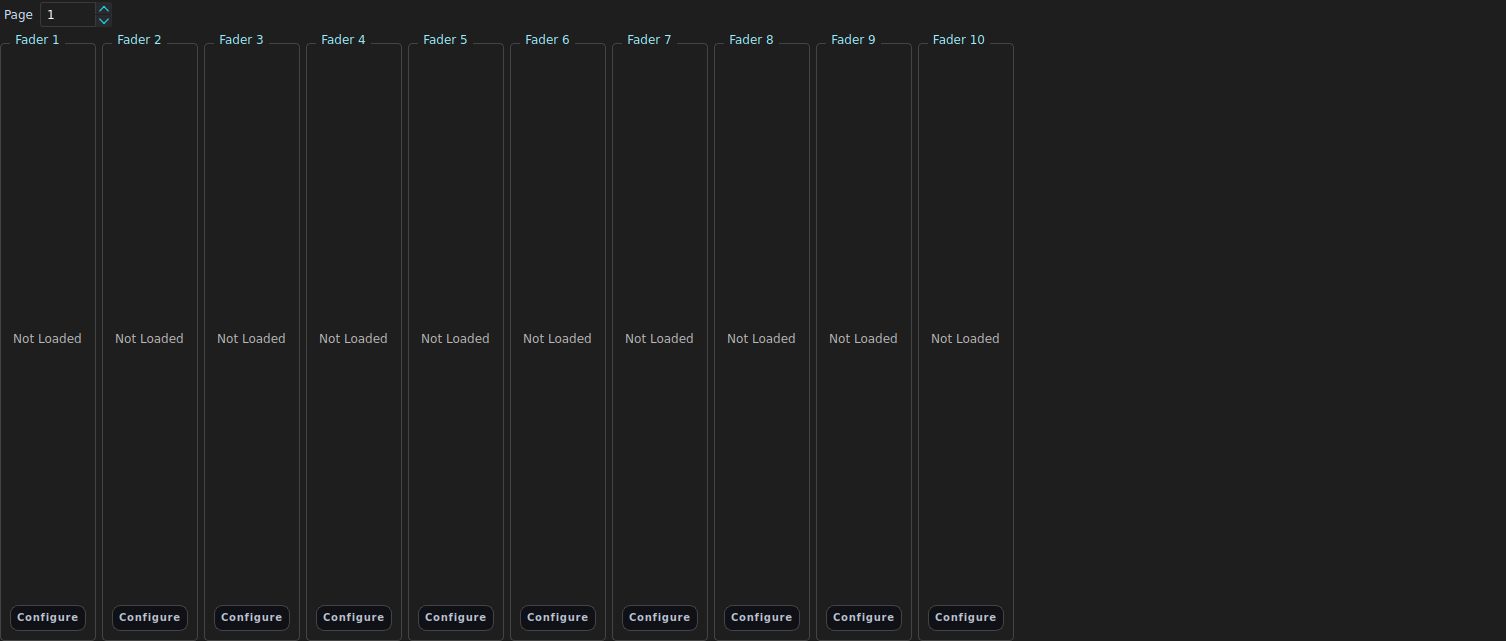
Drive a fader
Drag a strip’s slider to blend its loaded source in and out. The percentage below the slider is the fader level.
Equivalent command:
FADER <n> <0-100>.
| In the GUI | What it does | Equivalent command |
|---|---|---|
| Configure button | Load a source and set merge mode / override | LOAD … AT FADER <n> |
| Momentary button | Full-level bump while held, then release | FLASH <n> ON on press, FLASH <n> OFF on release |
| Latch button | Toggle the strip to full and back | FLASH <n> ON / FLASH <n> OFF |
| Drag the slider | Set the level | FADER <n> <0-100> |
CLI commands
PAGE 2                         # select fader page 2
PAGE                           # report the selected page
LIST FADERS                    # list loaded faders (grouped by page)
SHOW FADER 1                   # full detail for one fader
LOAD 1 1 AT FADER 1            # load cue list 1, cue 1
LOAD CUE 7 AT FADER 4          # load a single cue
LOAD PRESET 4 AT FADER 3       # load a preset
LOAD CAPABILITY intensity SELECTED AT FADER 2
FADER 1 75                     # set fader 1 to 75%
FADER 2.1 75                   # set fader 1 on page 2 to 75%
FLASH 1 ON
FLASH 2.1 ON
FLASH 1 OFF
RELEASE ALL FADERS             # fade down and release every active fader
Fader levels are 0–100, not 0.0–1.0: FADER 1 50 is half, FADER 1 100
is full. Loading a new source onto a fader replaces whatever was loaded there
before; there is no separate unload command.
Naming a fader
Every fader in the GUI shows a label beneath its number. By default the label
is derived from what is loaded (Cuelist M, Cue N, Palette <name>,
Preset <name>, the capability name, SFX n, or Frequency N). Add an
optional NAME clause to any LOAD ... AT FADER command to override it with a
custom label; quote it if it contains spaces:
LOAD CAPABILITY intensity SELECTED AT FADER 2 NAME "House Lights"
LOAD CUE 7 AT FADER 4 MODE htp NAME Chorus
The Configure window on each fader strip has a matching Name field; leave it blank to fall back to the derived default.
Example
LOAD 2 1 AT FADER 3            # cue list 2, cue 1 on fader 3
FADER 3 100
GO 2 NEXT                      # advance cue list 2
FADER 3 40
(Create additional cue lists with ADD CUELIST [name] and store into them
after SELECT CUELIST <id>.)
Merge modes
The optional MODE token on LOAD chooses how the fader’s values merge with
other layers:
| Mode | Behaviour |
|---|---|
blend (default) | Values fade in proportionally with the level. Intensity-class attributes merge highest-takes-precedence; other fadeable attributes blend toward the fader’s values as it rises (several blend faders on one attribute are weighted-averaged); non-fadeable attributes snap in once the fader is up. |
htp | While the fader is up it takes over its attributes, latest-moved fader winning. Intensity-class attributes are scaled by the level; everything else applies at full value. |
intensity | Like htp, but only intensity is scaled by the level - all other attributes apply at full value as soon as the fader is up. |
LOAD CUE 7 AT FADER 4 MODE htp
Merge behaviour summary
- Fader values are scaled by fader level.
- The programmer sits above normal faders, so programmer values win while present.
- Releasing a fader (level to 0, or
RELEASE ALL FADERS) removes its contribution once fades complete.
Override faders
Add the OVERRIDE token when loading or setting a fader to flag it as an
override fader. Override faders are merged in exactly the same way as normal
faders, but at a dedicated layer that runs after all programmer layers - so
they override the programmer instead of being overridden by it. This is handy
for working lights while programming a show.
“Merged in the same way” is the part that decides what happens to intensity. An override fader replaces the programmer’s value for an LTP attribute - colour, position, gobo - but intensity is HTP, so the two combine at the higher of the pair: the fader can hold light up past the programmer and cannot pull it down. That is what makes an override fader safe to leave loaded at zero.
LOAD CAPABILITY INTENSITY GROUP 1 AT FADER 10 OVERRIDE
FADER 10 100              # working lights stay up regardless of programmer
FADER 10 100 OVERRIDE     # set/raise the flag on an existing fader
FADER 10 0 NOOVERRIDE     # clear the flag
The flag is reported by LIST FADERS and SHOW FADER, and is saved with the
show.
SFX on faders
A fader can run a generic SFX (see Effects (SFX)). The fader level scales the effect’s amount, so the fader becomes a live depth control:
FIXTURE 1 THRU 8 ; LOAD SFX 1 AT FADER 12 AMOUNT 100
LOAD PRESET 4 AT FADER 3   # a preset's stored SFX start when the fader rises
LOAD CUE 7 AT FADER 4      # a cue's effects also play when the fader rises
A fader at 50% with AMOUNT 80 runs the effect at 40%. Lowering the fader to
0 stops the effect; raising it starts it again. Non-fadeable wheels (gobo/colour
wheel) only engage once the effective amount passes 50%.
Presets and cues loaded on a fader run any effects they carry (scaled by fader
level), the same way a bare LOAD SFX fader does. A fader-owned effect renders
base then effect - it rides the source’s own static contribution - so at
full level a source on a fader is identical to that source elsewhere: a
preset on a fader at 100% matches the preset recalled into the programmer, and a
cue on a fader at 100% matches GO-ing that cue. Below full, the base (and the
effect’s centre) blend up from underneath with the fader.
Troubleshooting
- Fader appears inactive: confirm a source is loaded (
LIST FADERS) and that you are on the page it was loaded onto (PAGE). - Output you cannot find a fader for: a fader on another page is still live.
LIST FADERSshows every page. - Unexpected override: check for active programmer values
(
SHOW PROGRAMMER), or another fader flaggedOVERRIDE. - Flash sticky: verify
FLASH <id> OFFwas executed or the button released.